Revisions
May 27, 2026: Removed mentions of outdated libraries.
April 1, 2026: Polished for clarity.
So you’ve gained access to a Plex library and you want to make the most of the experience. Follow this guide to configure your Plex settings correctly so you can start watching content without any issues.
Download the Plex app.
The best experience begins with downloading the Plex software. Visit the official Plex website and hover over the Download button in the menu. Click on the “For Desktop” option, not Plex Media Server. You can choose to download and install the software directly from the Plex website or from the Microsoft Store. Plex is also available on mobile and tablet devices, such as through the App Store on your iPhone. You may also use the web version of Plex if preferred, such as when you’re on a work laptop that prohibits unauthorized software installation.
Plex on Windows.
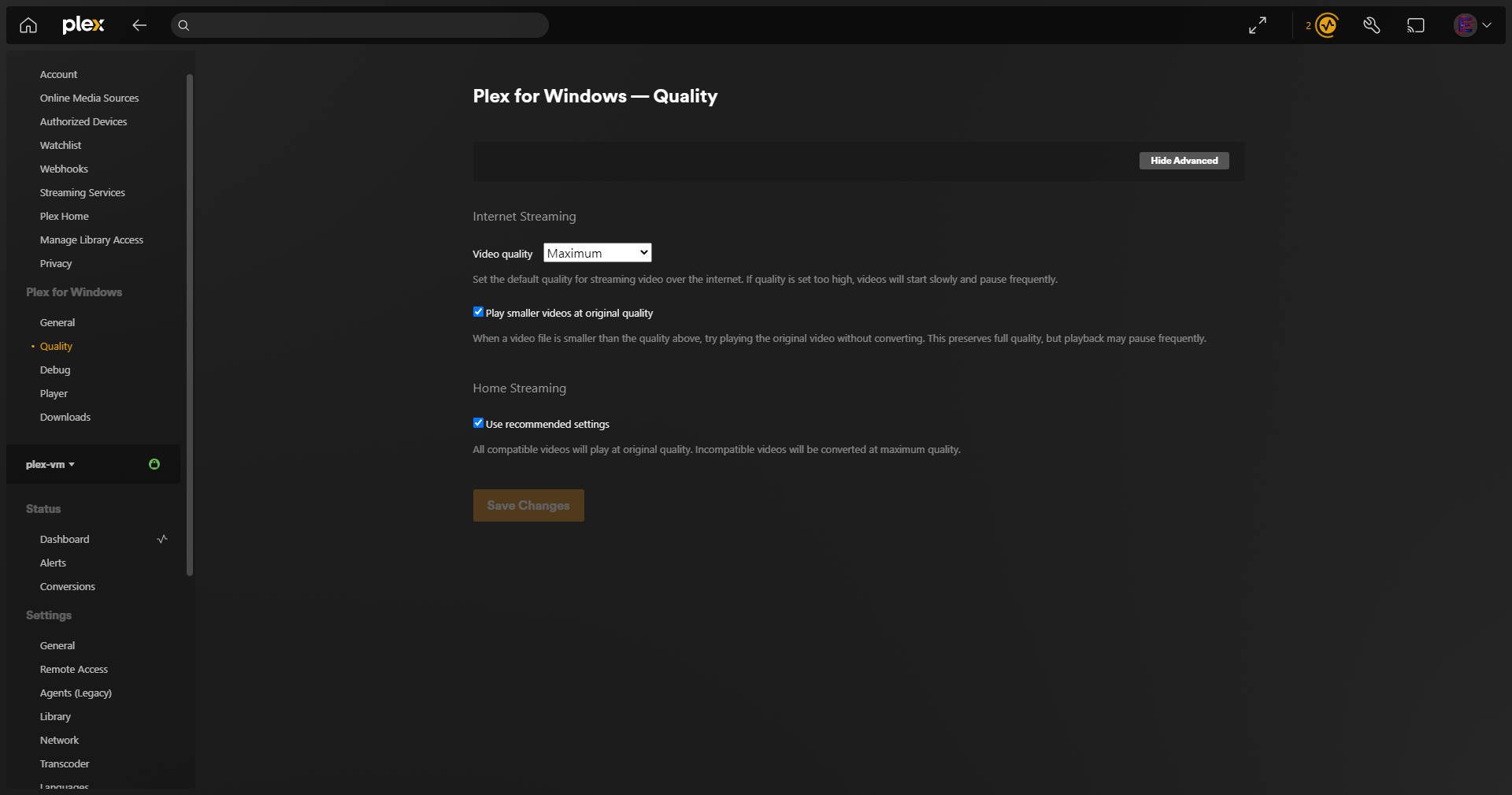
After installing Plex and logging into your account, click on the wrench icon in the top right corner. In the left sidebar, click on Quality. Set the video quality to maximum. Ensure the other two options (Play Smaller Videos at Original Quality and Use Recommended Settings) are enabled. The same options will be available if you’re using the web version of Plex.
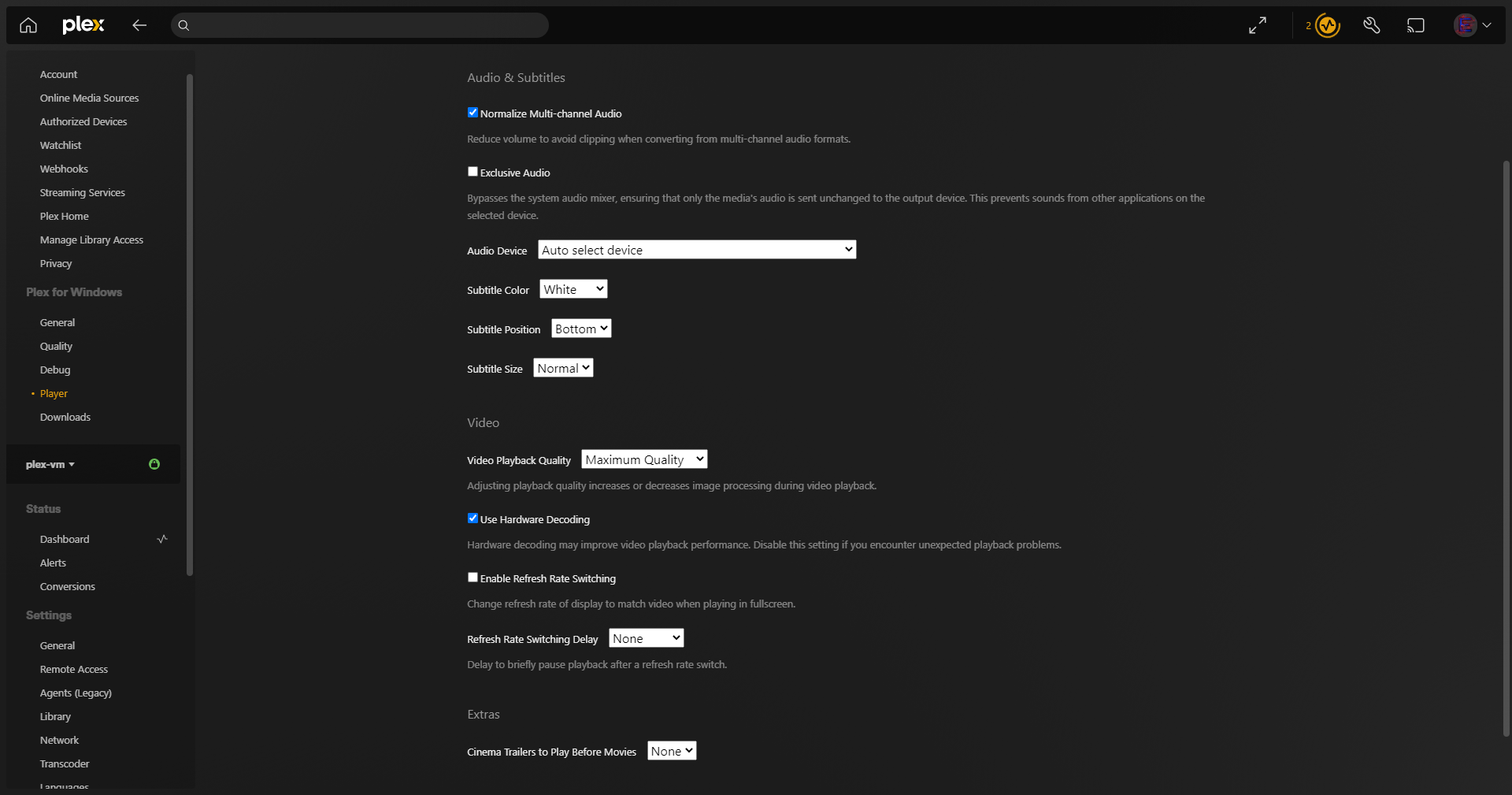
Next, navigate to the Player settings (from the same sidebar) and scroll down to Video Playback Quality. Set this to maximum quality as well. This setting may not appear in the web version of Plex.
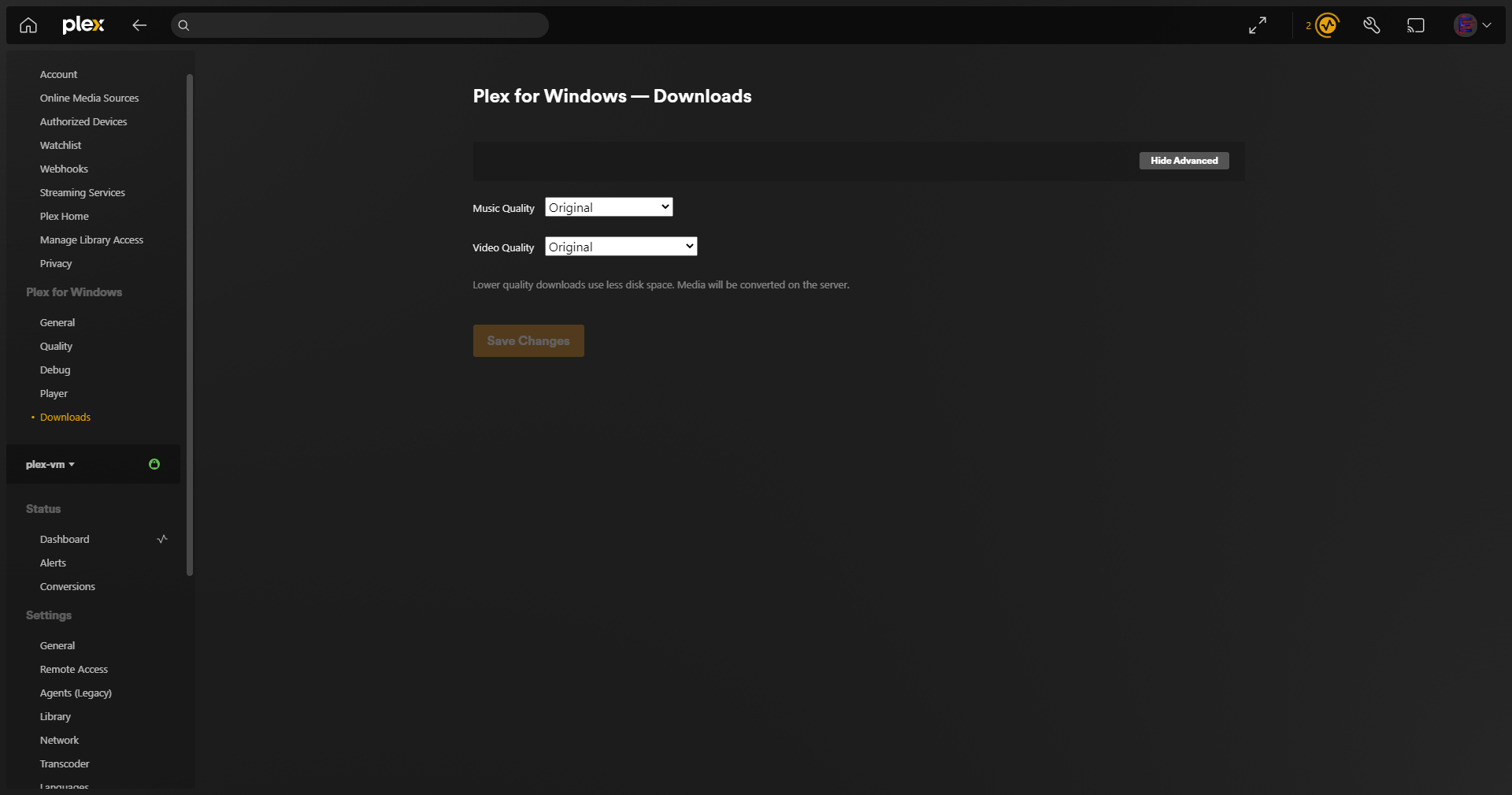
Next, navigate to the Download settings (also from the same sidebar) and set both Music Quality and Video Quality to original.
Plex on iOS.
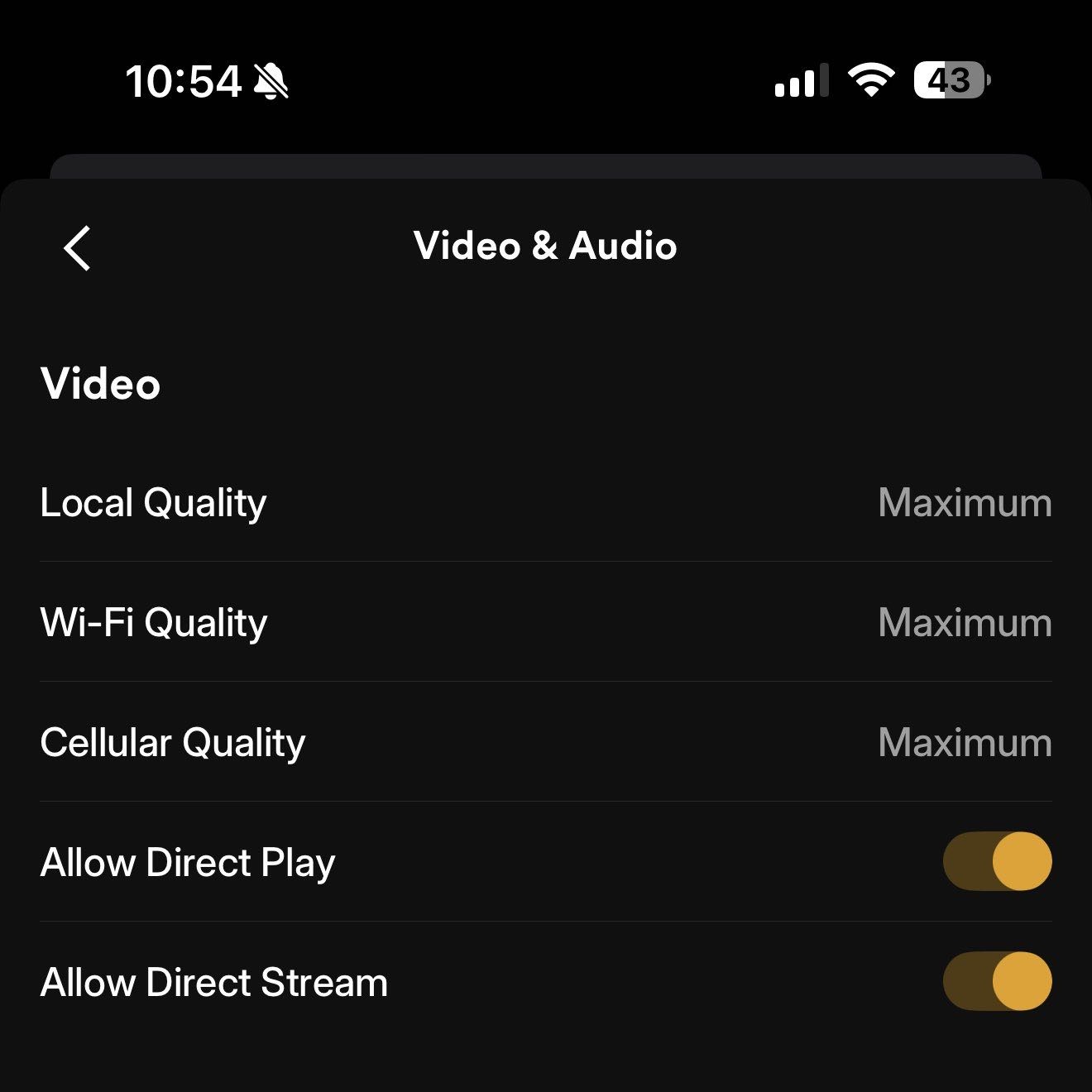
After installing Plex and logging into your account, tap on your user icon in the top right corner. A sidebar will appear. Tap on Settings. Go into Video & Audio and set all the options to maximum. Additionally, ensure that the other two available toggles are turned on (Allow Direct Play and Allow Direct Stream).
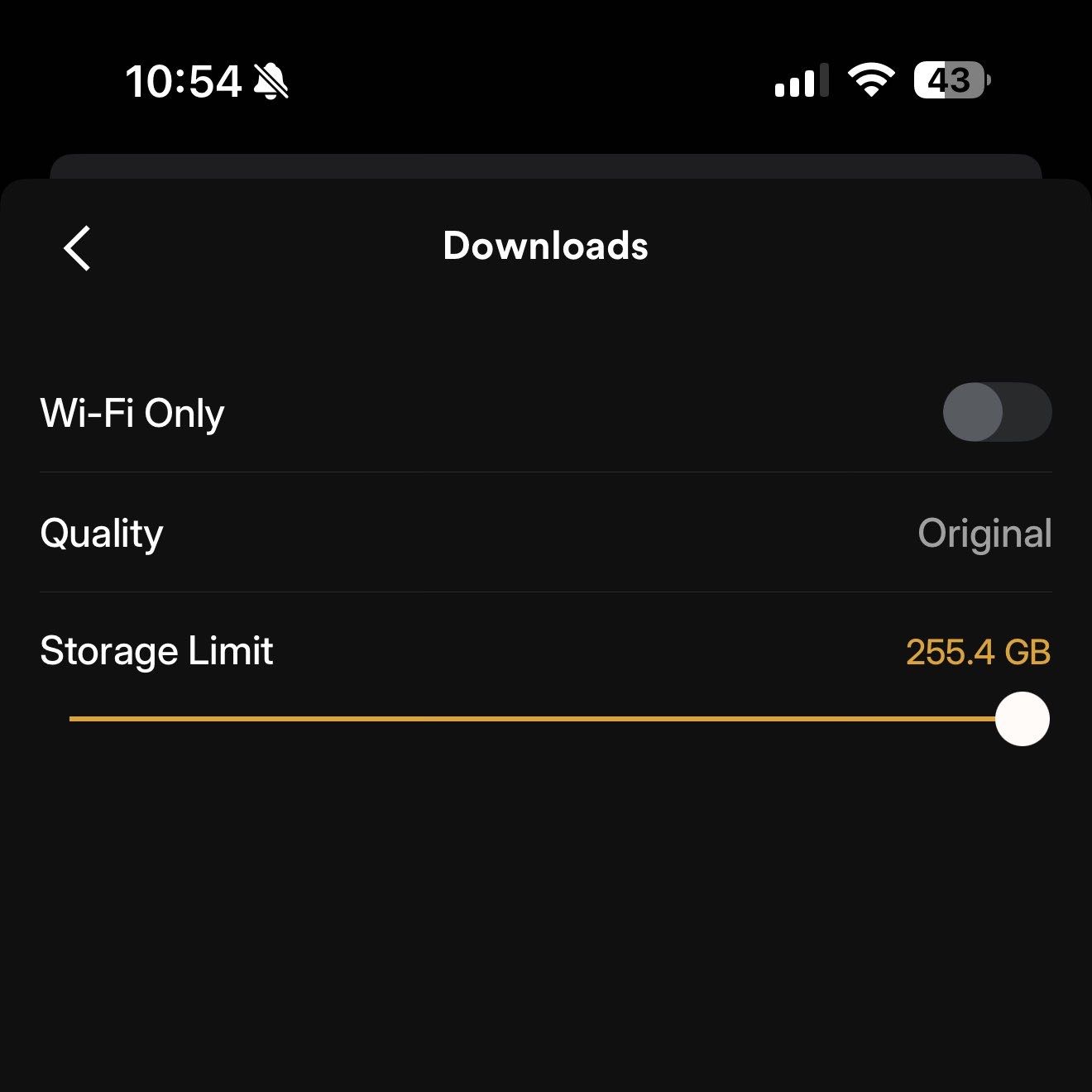
Navigate back to the main Settings screen and go into Downloads. Turn off the Wi-Fi Only option and change the quality to original.
Media playback.
The settings mentioned in the sections above will result in streams starting at the highest possible quality. A single movie on Plex could be a full Blu-Ray rip with a file size close to 100GB or even higher. Not everyone has that kind of bandwidth, especially when you’re traveling and using mobile data. This would result in constant buffering.
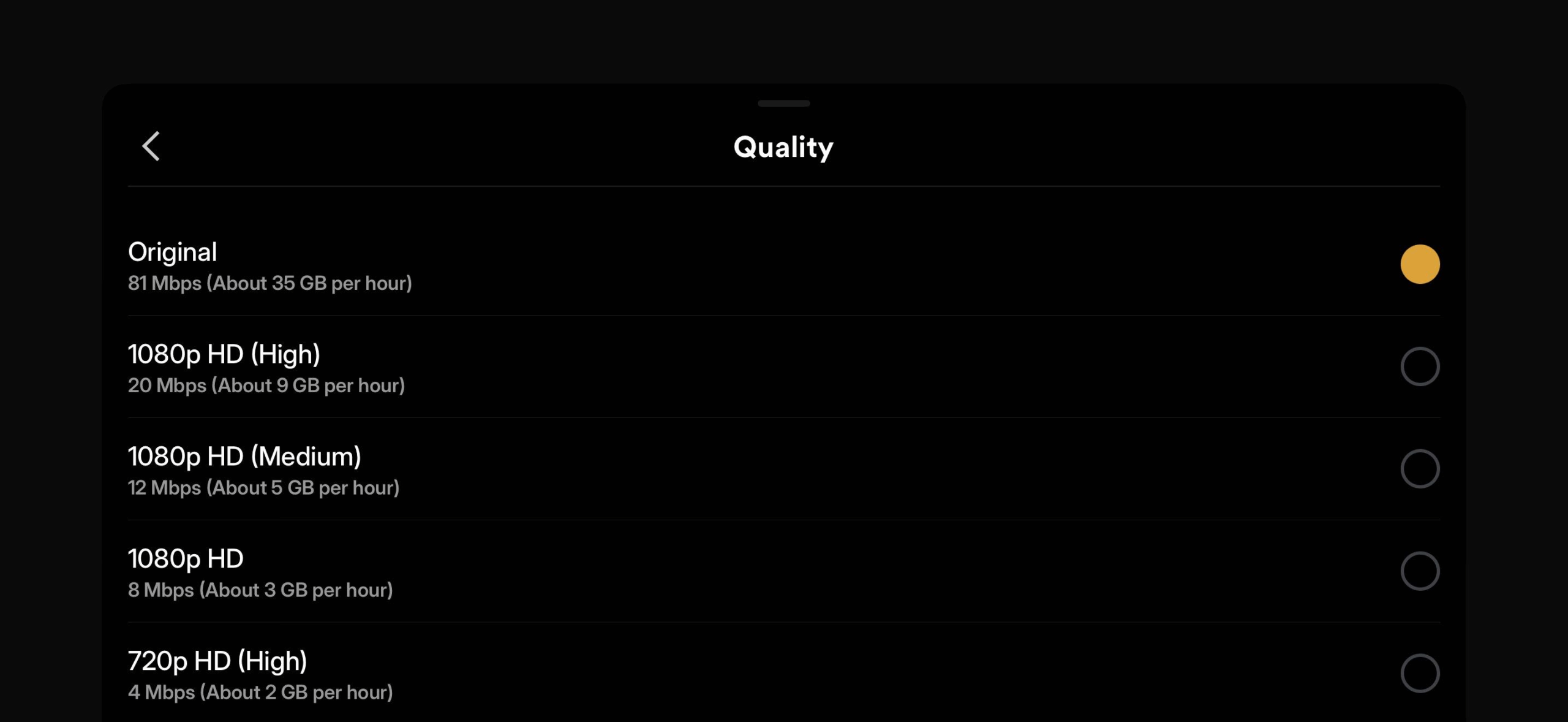
If your stream doesn’t buffer, that means your connection has sufficient bandwidth to handle the file. In that case, you can continue watching in original quality. If your stream is buffering, simply click the three-dot button to open the player settings (usually near the bottom right corner) and go into the Quality sub-menu. Gradually lower the quality until your video stream no longer stutters. In most cases, setting it to one step below original (20Mbps) is sufficient.
Requesting media.
This section only applies if you’re accessing my Plex server. You can request any movie or TV show through the Overseerr platform. For a link to the site, please reach out to me directly. You can log into Overseerr using your Plex account. Once logged in, you can search for any movie or TV show that interests you. When you submit a request, the server will automatically search for, download, and load the media into Plex. You will receive an email notification once the process is complete (email notifications may fail to send in certain scenarios, such as when a TV show is currently airing and episodes are still being released).
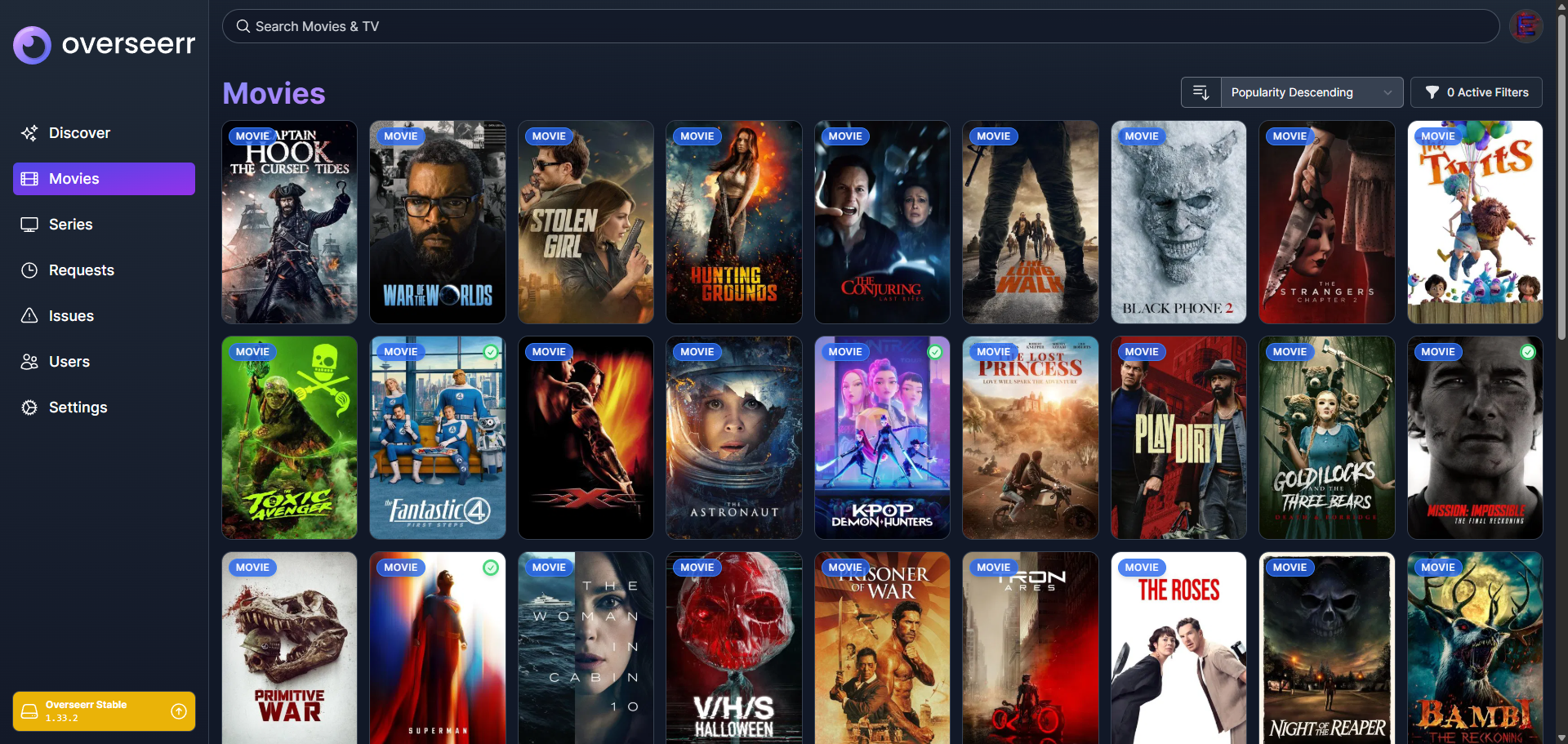
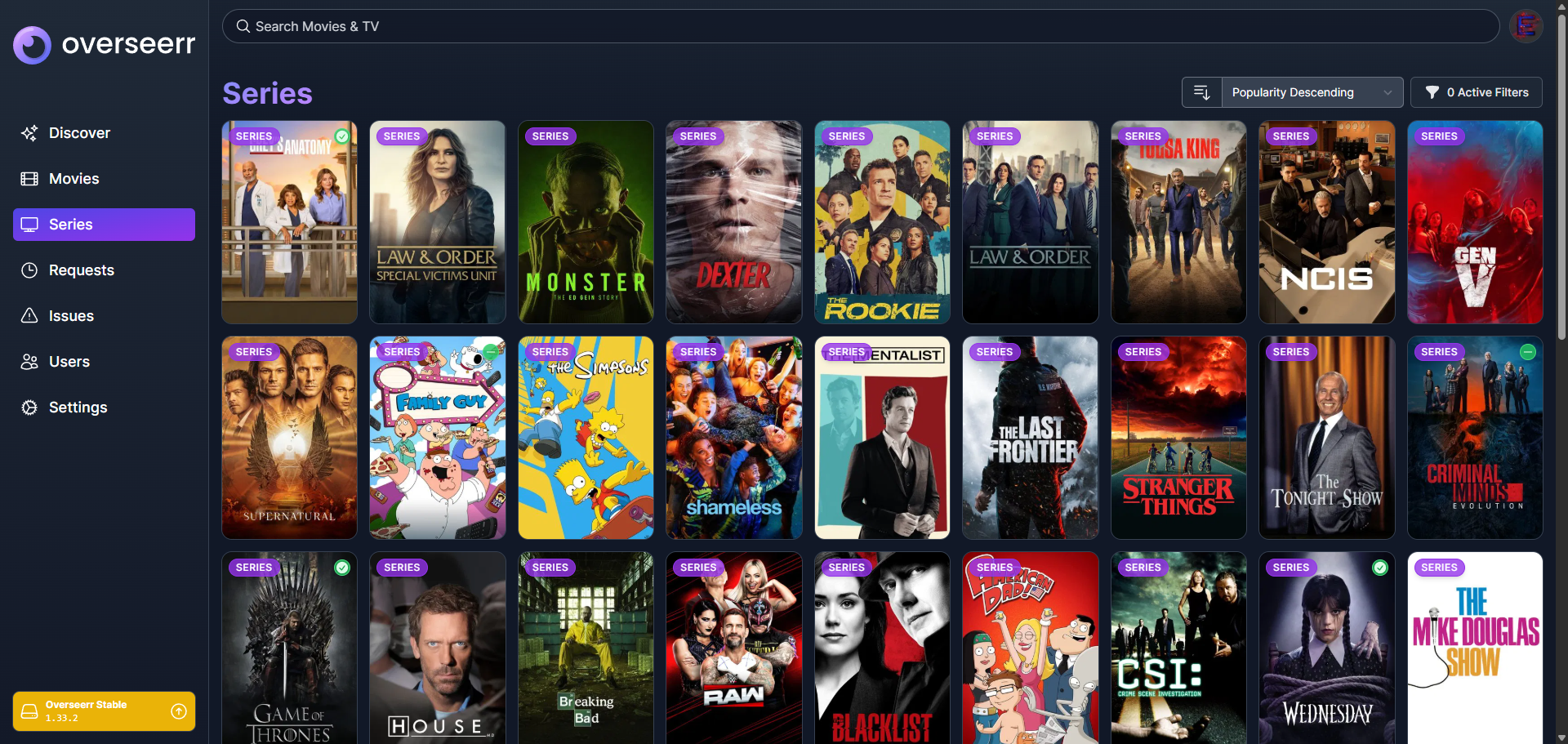
The one rule I ask you to follow is to not request any anime on Overseerr. Requesting anime on Overseerr will result in the media being incorrectly added to the TV Shows library instead of the Anime library. When in doubt, if it exists on MyAnimeList, please refrain from requesting it. Instead, ask me directly.
Leave a Reply