Revisions
April 1, 2026: Polished for better readability and fixed grammatical mistakes.
You’re starting your journey into building computers. There are so many options out there. How do you choose the right parts for your rig? I’ll guide you through the process of selecting the correct parts to optimize your build.
Chassis.
Although this is mostly personal preference since everyone has their own tastes in design and color schemes, there are certain things that you want to consider. Are you planning to build a small, medium, or large PC? The computer case needs to be compatible with the other parts you plan to install.
For example, if you’re installing an ATX-sized motherboard, you cannot select a small case that only supports motherboards up to mATX. Likewise, if you’re planning to install a 360mm liquid cooler into your system, you cannot select a case that only supports radiators up to 280mm. You also need to check the length of the graphics card that you’ve been eyeing. Your chassis should be able to fit the graphics card you choose, specifically the length, as modern graphics cards have been getting progressively longer.
Select a chassis that you like, but make sure it’s compatible with everything else that you’re choosing. I personally like cases from Fractal (Fractal Define 7 series) and NZXT (H5 Flow series).
Processor.
I recommend buying one of the newest-generation processors. The two major players in this space are Intel and AMD. The latest processors will typically offer the best efficiency and performance improvements. At the time of this post, AMD’s current processor family is the Ryzen 9000 series (Zen 5).
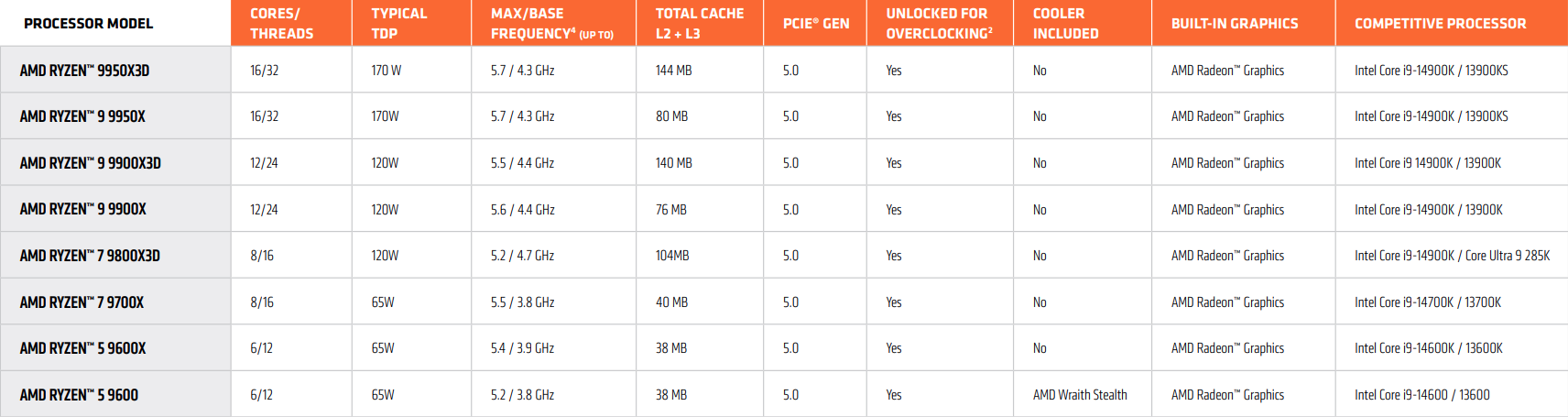
The processor models ending in “X3D” have AMD 3D V-Cache technology, which features vertically-stacked cache. This allows for considerably more cache on the processor (the fastest type of memory) for extremely low-latency operations. The system can therefore rely less on RAM (much slower compared to processor cache). At the moment, these “X3D” processors are the highest-performing chips for gaming.
AMD processors have a chiplet architecture, where each group of cores is in a CCD (Core Chiplet Die), with up to eight cores per CCD. If you’re purchasing a processor purely for gaming, then the AMD Ryzen 7 9800X3D is the optimal CPU for you this generation. It has one fully-loaded CCD with V-Cache. All tasks reside on the single CCD instead of distributing work across two. It’s an amazing all-around performer even outside of gaming.
If your work requires even heavier multi-threaded performance (like for rendering jobs), then one of the higher X3D processors is right for you. If you want the best consumer processor this generation, get the AMD Ryzen 9 9950X3D for the optimal performance across any workload.
If you want to quickly compare the performance of multiple processors, then visit the PassMark site and search for the name of your CPU. Pay attention to both the single-threaded and multi-threaded scores. You can also take a look at various benchmarks across the web.
Motherboard.
The processor you choose will determine your motherboard platform. The current generation of AMD desktop processors (Ryzen 9000 series) uses an AM5 CPU socket. The current generation of Intel desktop processors (Ultra 2 series) uses an LGA1851 socket. Since I recommended AMD processors above, we’ll take a look at AM5-socket motherboards.
The first step is to look up which motherboard chipsets are compatible with your socket. For AM5, there are currently two chipset series available (600 series and 800 series). Newer generation chipsets are usually recommended since they have the latest features and will be supported for longer. In this case, that narrows it down to the 800 series, which includes the X870E, X870, B850, and B840 chipsets.
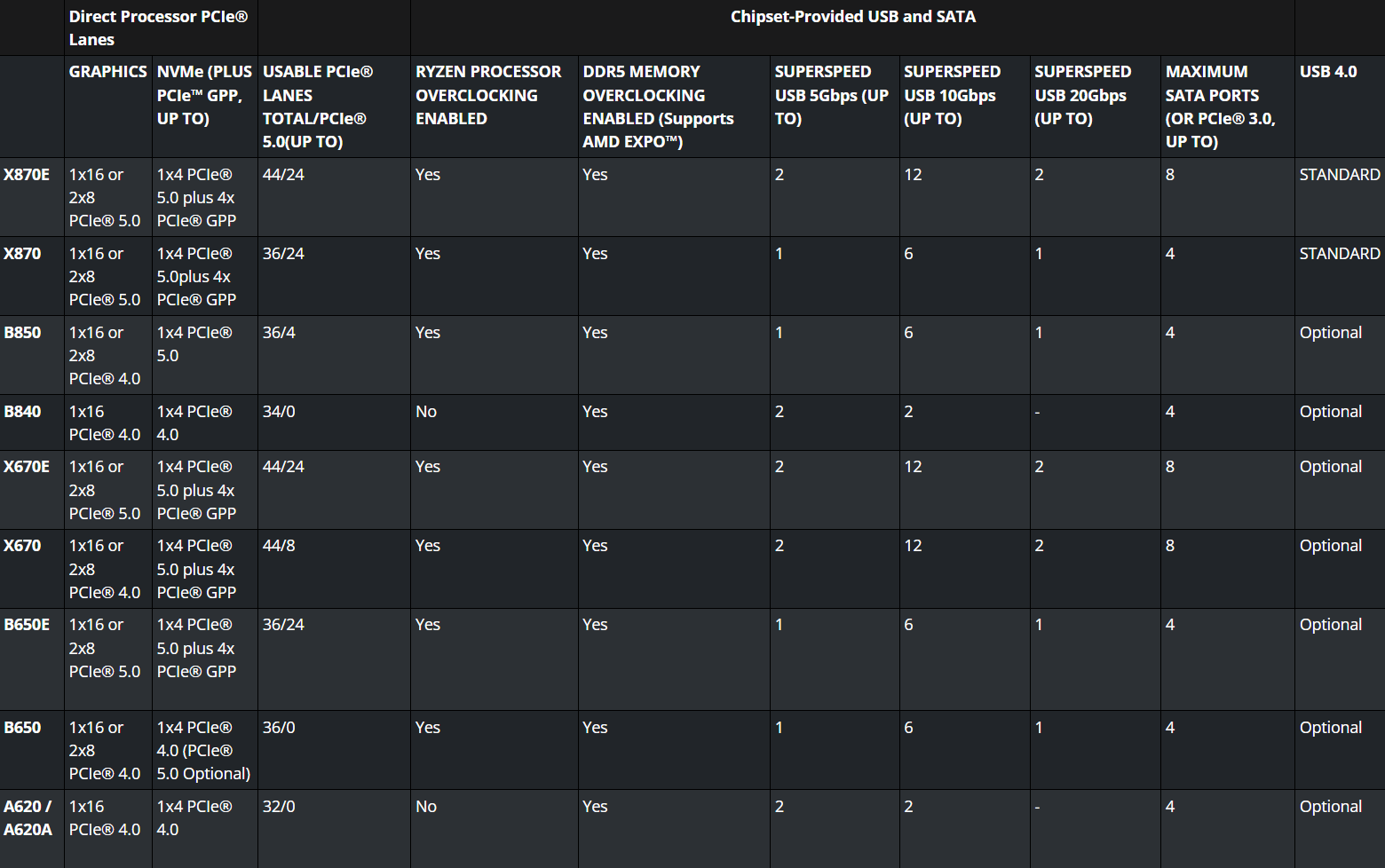
For all the systems I build, I typically opt for an “X” variant chipset instead of the more basic “B” variants. You’ll get more USB ports, and PCIe 5.0 compatibility for both your graphics card and NVMe drive. If you’re on a budget, you can choose the cheapest X870 motherboard available.
I typically suggest a mid-range or higher X870 motherboard from MSI, but any major vendor works. Check the specs and make sure you have the features you need (like built-in WiFi connectivity or a 2.5G ethernet port). You don’t need to step up to an X870E motherboard unless you require even more USB ports or more PCIe lanes. Standard X870 motherboards will already have sufficient VRMs and power delivery to support even the highest AMD Ryzen processor.
Graphics card.
As with the processor advice, stick with the current-generation hardware. The three major players in this space are Nvidia, AMD, and Intel. For graphics, I typically recommend going with Nvidia. At the time of this post, the GeForce RTX 50 series is the newest generation of GPUs.
The current generation of graphics cards supports features like Multi Frame Generation, which uses AI to “fill in” multiple frames between two real ones, enhancing visual smoothness. For games without native MFG support, Smooth Motion is an available driver-level solution in the Nvidia App that attempts to do the same thing, although not as precise, since it has much less data to work with.
Aside from prominent features like MFG, there are other improvements under the hood, including the newest Nvidia video encoder (NVENC) and Nvidia video decoder (NVDEC). NVENC is important for those who livestream, record gameplay, or deal with video workflows. The latest chips feature massive gains in performance and efficiency, including AV1.
The graphics card that you choose should pair nicely with your processor. It wouldn’t make much sense to pair the highest-end GeForce RTX 5090 graphics card with a last-gen Ryzen 5 7400F processor. Likewise, you wouldn’t usually pair the highest-end Ryzen 9 9950X3D processor with a low-end GeForce RTX 5050 graphics card. You can easily find benchmarks online to make sure one part isn’t heavily bottlenecking the other.
Some cards may have more than one configuration. For example, the GeForce RTX 5060 Ti card has an option for 8GB VRAM or 16GB VRAM. When there are two configurations available for the same chip, it’s highly recommended to go for the one with higher VRAM. Benchmarks show that the higher VRAM variants perform significantly better than the lower VRAM versions. The added memory is even more important when you play on higher resolutions, like 1440p instead of 1080p.
Your choice of graphics card comes down to your budget. Of course, if budget is not an issue, then go with the GeForce RTX 5090. Most people wouldn’t spend over $2,000 on an enthusiast graphics card, so a GeForce RTX 5080 would be the perfect high-end choice. The GeForce RTX 5070 Ti also uses the same die as its older brother (GB203-300), so it’s a good option if you can’t splurge. As for mainstream graphics cards, the GeForce RTX 5070 and GeForce RTX 5060 Ti graphics cards are good options. I wouldn’t recommend a GeForce RTX 5060 or lower unless you’re on a strict budget.
Founders Edition cards are made by Nvidia and are sold at true MSRP. They hold their value over time better than other card versions. If you don’t have access to a Founders Edition card, I recommend purchasing a card from PNY. They are the last remaining board partner here in the United States after EVGA left the graphics card market. If you’re unable to find both Founders Edition and PNY versions of your card, the last board partner I recommend is MSI. I usually avoid Asus, Gigabyte, and Zotac cards based on anecdotal evidence of terrible customer service and warranty processes. If you’re on a strict budget, buy the cheapest version of your card from any vendor.
RAM.
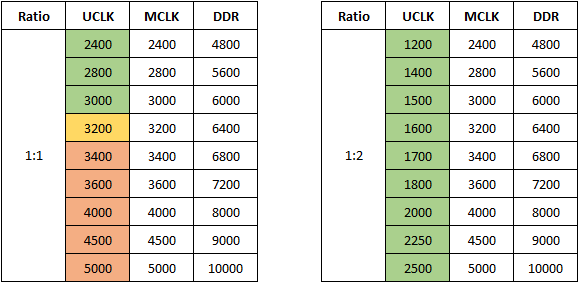
If you’re on the latest processors and motherboards at the time of this post, they’re only compatible with DDR5 RAM. For the AM5 platform, the sweet spot is DDR5-6000. When the DDR speed is 6000 MT/s, your AMD processor runs the UCLK and MCLK at a 1:1 rate. It is the highest speed available in 1:1 mode that offers high stability.
If you attempt to run higher RAM speeds, like DDR5-6400 or DDR5-6800, then the processor will fall back to 1:2 mode since the memory controller won’t be able to stay stable otherwise. While bandwidth does increase, the latency penalty is severe. You will notice lower average framerates and more framerate dips in your games when operating your system with the UCLK and MCLK desynchronized.
You should specifically purchase a RAM kit with an AMD EXPO profile to pair with your AMD processor. If you’re purchasing RAM for your Intel build, ensure that your RAM kit has an Intel XMP profile instead. Make sure to activate the profile in your motherboard BIOS to run at the advertised speeds. If you don’t, your RAM will operate at much lower JEDEC speeds.
When choosing RAM, choose a kit with the lowest possible primary timings for the best latency, starting off with CL (CAS latency) being the most important. At the moment, the lowest latency kit available at our sweet-spot speed is DDR5-6000 CL26. Then look at the other values in the chain. For example, if you see one kit with 26-36-36-68 timings and another kit with 26-36-36-96 timings, then the first one would be better. Lower RAM latency significantly helps with higher framerates, fewer stutters, and better 1% lows.
For most gaming rigs, I would recommend 32GB of RAM. You can go higher if needed. The bare minimum for any new computer nowadays should be 16GB, so avoid going below that even if you’re on a budget. If you’re on a strict budget, you can get slightly slower RAM, like CL28 or even CL30 instead of CL26.
Always install two sticks of RAM instead of four, unless your workflow requires you to absolutely max out the memory capacity. In that case, make sure to purchase a kit of four sticks for the highest probability of the RAM properly working (not two kits of two sticks each). Installing more than two sticks significantly increases strain on the memory controller and often prevents your PC from properly booting unless you manually lower the speeds. Installing only one stick is also never recommended since it essentially causes your computer to run single-channel memory instead of dual-channel.
I usually purchase G.SKILL kits in my own builds, but I like using PCPartPicker to compare RAM kits across different vendors. They have a great filtering system to easily find all DDR5-6000 kits, and then you can sort the results by lowest latency.
Power supply.
Your graphics card is typically the highest-powered component in your system. You can look up the minimum PSU requirements for your graphics card and go upward from there. For example, the GeForce RTX 5090 specs recommend that your power supply be at least 1000W. You should look for a power supply with a wattage greater than the recommended minimum. In that case, a 1200W PSU would be a good starting point. This helps prevent unexpected stability issues when there are large power usage spikes.
80 PLUS certifications for consumer power supplies include Standard, Bronze, Silver, Gold, Platinum, and Titanium. These ratings are given based on the efficiency of the PSU, tested at different load levels to ensure the requirements are met at every stage. Power supplies can vary in quality. Generally, higher efficiency power supplies are of higher quality, but that’s not always the case. Always perform your own due diligence.
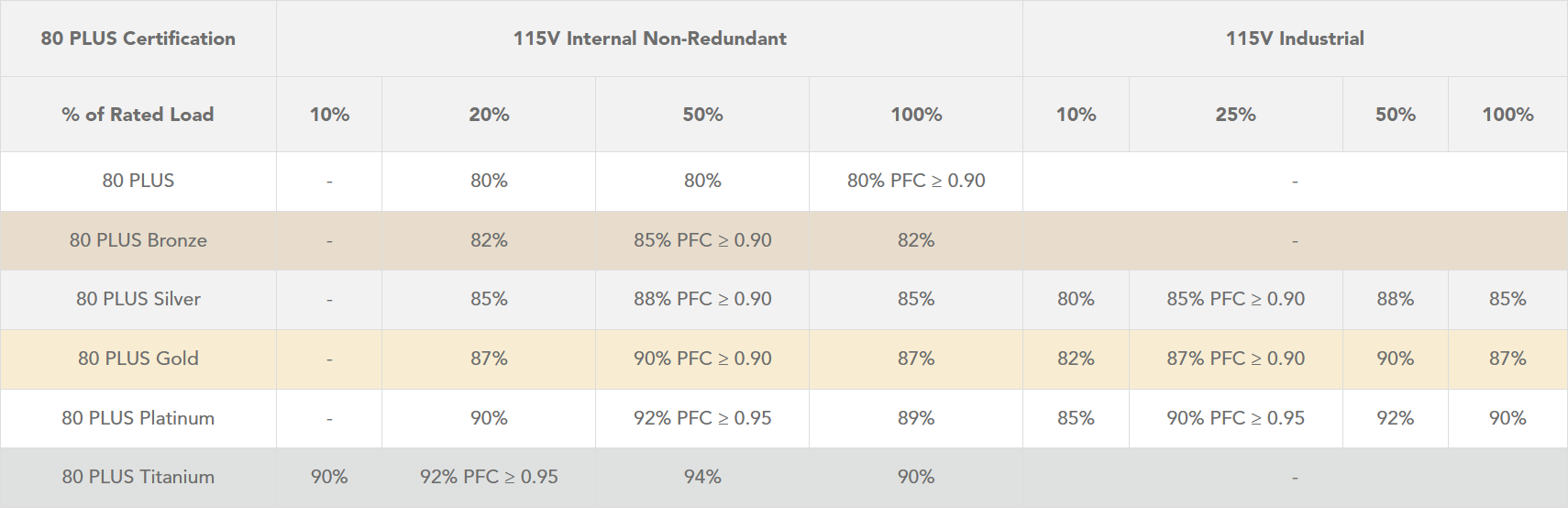
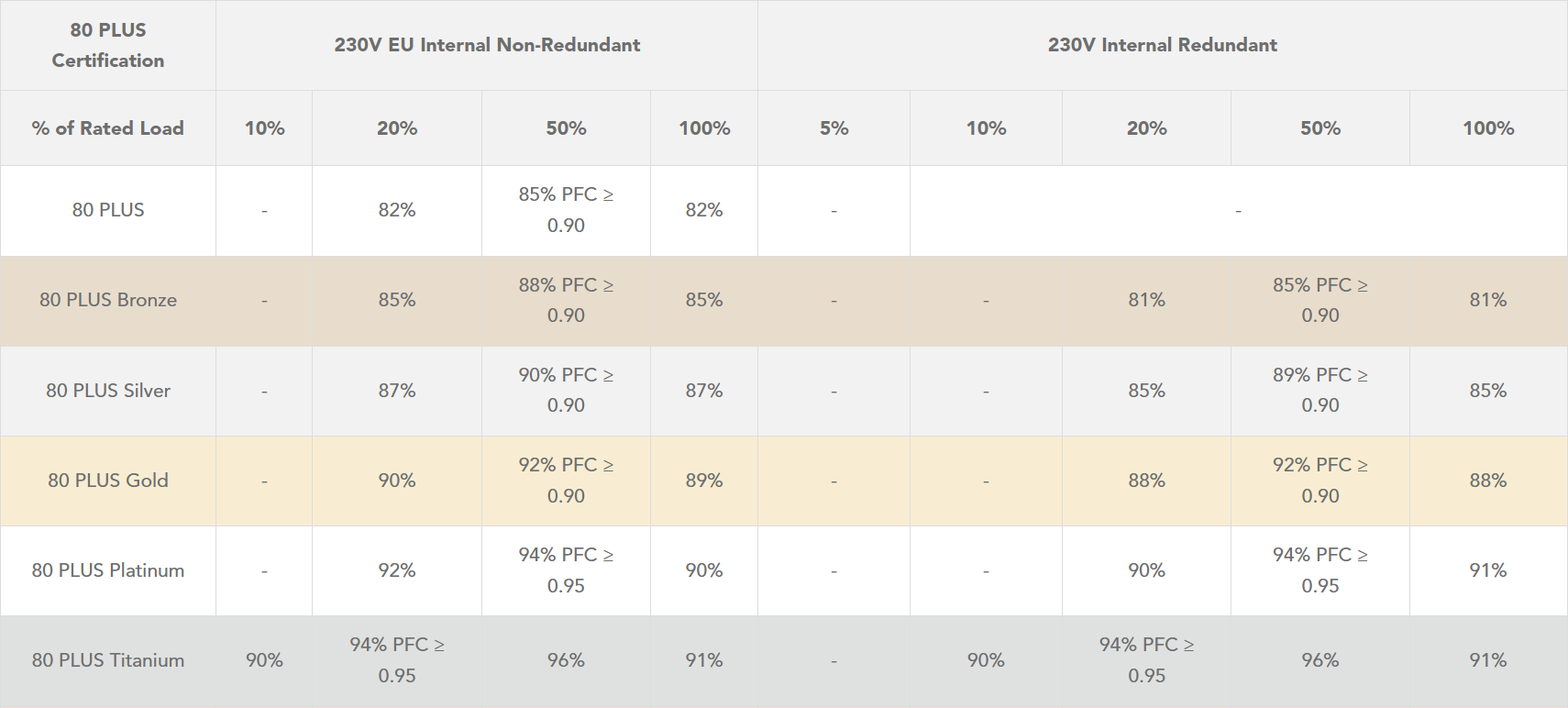
The higher the 80 PLUS rating, the more efficient the PSU. A more efficient PSU draws less power from the wall and generates less heat. For example, a low-efficiency PSU may be pulling 1000W from the wall to output 800W of power for your system, generating a lot of excess heat while doing so. It also requires running the PSU fan more frequently or at higher speeds to dissipate the extra heat. It’s like running a 200W heater in your room. Higher efficiency power supplies will also save you money on electricity costs over time.
I recommend purchasing a PSU with an 80 PLUS Titanium rating, but an 80 PLUS Platinum rating is also good. If you’re on a budget, 80 PLUS Gold is completely fine too. I am a fan of Seasonic power supplies, specifically their PRIME TX ATX 3.1 (Titanium efficiency) PSU. Unfortunately, it is currently only available in 1600W and 1300W versions. The VERTEX PX ATX 3.1 (Platinum efficiency) PSU is currently available in 1200W, 1000W, 850W, and 750W versions.
The newest graphics cards no longer use the old eight-pin PCIe power cables. They now use a single 12VHPWR connector, capable of delivering up to 600W of power. The power supplies I linked above have the newest revision of that, which is the “12V-2×6” cable. It supports the latest ATX 3.1 and 16-pin PCIe Gen 5.1 standards. It’s more reliable than the previous revision, featuring shorter sensing pins and longer conductor terminals. I’m sure you’ve seen the news of graphics cards burning up the power connector. This change was made to mitigate that. I would recommend only considering power supplies with this latest standard.
A power supply is an important part of your computer. Its purpose is to provide clean, stable power to every single component. Too many people skimp on this part since it’s not a component that directly increases the performance of a computer. A good power supply is worth the investment. A high-quality one will last longer, allowing you to continue using it in the future when you decide to upgrade your entire PC. SPL’s PSU Tier List is a good resource if you want to look up a specific power supply.
CPU Cooler.
Out of the current generation of AMD Ryzen CPUs, only the Ryzen 5 9600 includes a basic CPU cooler in the box. It’s a small AMD Wraith Stealth cooler that’s compatible with virtually any build configuration. The higher-end processors require you to purchase your own cooler.
When choosing between a liquid cooling solution and an air cooler, there are pros and cons that you must consider. To start off, a liquid cooler with a 120mm (1x 120mm fan) radiator is never worth it, as it performs on par with mediocre air coolers. As you step up to 240mm (2x 120mm fans), 280mm (2x 140mm fans), 360mm (3x 120mm fans), and 420mm (3x 140mm fans) sizes, this is where it starts making sense.
The larger the radiator, the more cooling it can provide. Larger radiators contain a higher volume of liquid, capable of absorbing more heat. Not only that, but a larger radiator will be more efficient at dissipating heat because of the higher surface area for the fins. In turn, it’s possible to run the fans at a lower speed to achieve similar cooling performance as smaller coolers. It makes sense why AIO (all-in-one) liquid coolers are a popular, zero-maintenance, cool and quiet solution. I’ve personally used multiple NZXT Kraken series liquid coolers without any of them failing on me. Most AIO liquid coolers on the market are actually customized versions of Asetek. If you’re on a budget (or even if you’re not on a budget), Arctic makes liquid coolers that often top all the performance charts.
As with most good things, there are also cons to using liquid coolers. The pump itself can run at high speed and result in unwanted noise, especially if you’re sensitive to sounds. If the pump somehow fails, the fans will keep spinning, so you might not immediately notice unless you’re constantly monitoring the RPMs and CPU temps. The processor may start hitting the hardware-level thermal protections and immediately power down your PC.
On the flip side, air coolers excel in the areas that AIO coolers don’t. Aside from the fans, air coolers are just giant hunks of metal. The heatsink has no moving parts and there is no ongoing maintenance required. An air cooler will last well past the lifespan of an AIO pump and you will avoid the risk of a liquid cooler potentially leaking inside your PC. Air coolers are king when it comes to longevity.
The golden standard for air coolers is Noctua. Aside from making top-tier products in every regard, they provide industry-leading support in terms of customer service and warranty. They are also very well-known for providing free mounting hardware if you plan to use an existing cooler on future builds. For maximum performance, the flagship NH-D15 G2 is a good choice. It has a huge heatsink, so you must ensure that your computer case supports the height of the CPU cooler. To maximize compatibility while maintaining excellent cooling performance, the NH-U12A (also available in a chromax.black color scheme) is the perfect choice. It uses 120mm fans instead of 140mm fans, and doesn’t overhang the RAM or NVMe slots, making it easier to access other components. If you’re on a budget, Arctic also has amazing air coolers. Their Freezer 36 series is an excellent performer despite the value pricing.
Some Noctua coolers come with Noctua’s NT-H1 thermal paste, and some come with Noctua’s upgraded NT-H2 thermal paste. I personally recommend using the newer version even if you’re not installing a Noctua cooler. The paste is rated for at least five years once applied, providing excellent longevity. You can add the NA-TPG1 thermal paste guard if you’re on an AM5 processor. There is an AM5 Edition available that bundles the two together.
Modern processors automatically boost higher if there is enough power, voltage, and thermal headroom. It’s not uncommon to see high temperatures even with a high-end cooler. It is normal and expected behavior, especially if you have technologies such as PBO (Precision Boost Overdrive) enabled.
Storage.
Unlike 3.5-inch and 2.5-inch drives of the past, modern desktops use an SSD that plugs right into the M.2 slot of your motherboard. There are two types of M.2 SSDs. There’s one that uses the older SATA-based technology and one that uses NVMe technology. The latter is what we want. The top NVMe slot on a motherboard is typically the one that is connected directly to the CPU without first going through the chipset, so that should be the slot that you use.
Depending on your motherboard, it may support the newest PCIe 5.0 NVMe drives. Older motherboard models might only support up to PCIe 4.0 NVMe drives. To get the most out of your computer, opting for a Gen 5 SSD is optimal since nearly all drives are backwards compatible with the previous generation anyway. My NVMe SSD recommendation would be Samsung’s 9100 PRO, which is currently available in 1TB, 2TB, and 4TB capacities. Fast speeds, and especially the high IOPS, will make your PC extremely fast and responsive. If you want a cheaper drive, a PCIe Gen 4 NVMe SSD like Samsung’s 990 PRO is a good fit, also available in 1TB, 2TB, and 4TB capacities.
Not all NVMe drives are created equal, regardless of whether the specs show the newest generation or high speeds on paper. Even well-known manufacturers boost the capacity of lower-end SSDs by using QLC technology instead of TLC technology. That means that the performance is much worse as soon as the drive cache fills up during file transfers. QLC technology stores four bits of data per cell, so each cell holds 16 different voltage states, which is double that of TLC tech. Each cell needs to be read entirely before each write operation, so the drive can understand where to apply the appropriate voltage levels. Needing to read more bits per cell during write operations will result in significantly slower operation. In some cases, file transfers are even slower than on hard drives.
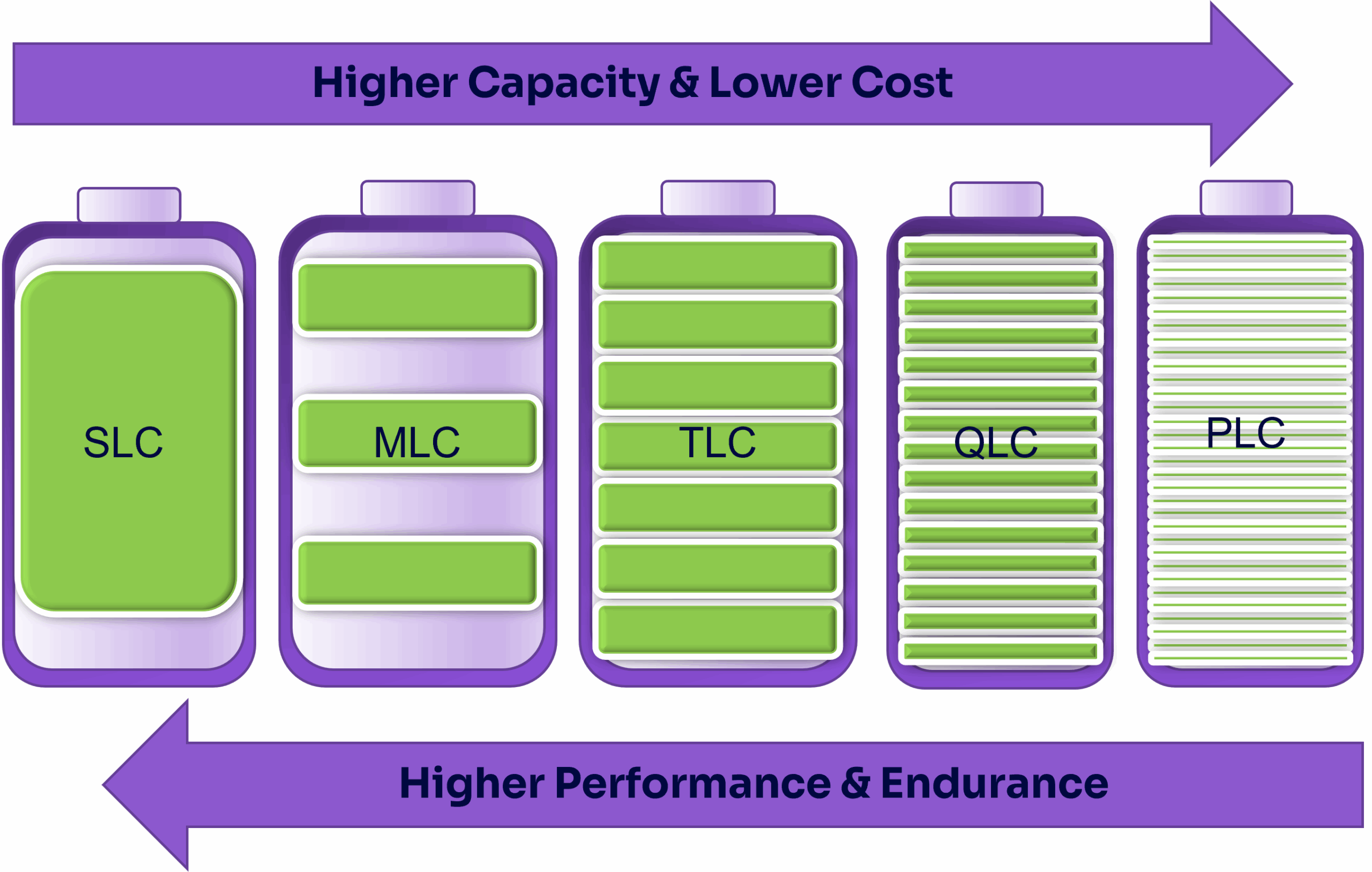
Some SSDs don’t even come with a dedicated cache, so it doesn’t mean all TLC drives are created equal. They might use on-hardware techniques to temporarily program some cells as SLC to create a dynamic, makeshift cache. But that also means that the cache will get smaller and smaller, or become nonexistent as the drive fills up. The larger the drive cache, the quicker it can perform small write operations without slowing down your entire PC. Generally speaking, larger capacity drives will come with a larger cache.
Fans.
The industry’s gold standard when it comes to computer fans is Noctua. They create chart-topping, high-performance fans that all other fans are compared against. Noctua fans undergo many years of research and development, going through many iterations and prototypes to improve every single possible metric. I highly recommend their newest second-gen fans, the NF-A12x25 G2 PWM (120mm) and NF-A14x25 G2 PWM (140mm).
There are many different applications for a computer fan, such as pushing air through a thick radiator or pulling air through a fine mesh screen for a filtered intake. In the case of air resistance, a fan must excel at static pressure in order to move air through obstacles. In the case of low air resistance, a fan must excel at airflow volume, moving as much air as possible. It’s a delicate balance between the two ends of the spectrum.
Another consideration is fan noise. Any fan can be a performance monster if you create aggressive blades and spin it at very high RPMs. But most consumers don’t want a highly unoptimized fan that sounds like a jet engine taking off right next to them. Not only that, but creating a fan that achieves a good balance between noise and performance is no easy feat, especially when you have to ensure it’s performant across the entire RPM range.
Acoustics play a larger role than most people think. Even if two computer fans advertise that they operate at a 24dB(A) noise level, one fan could have an unintrusive, low hum instead of an annoying, high-pitched whir. Optimizing fans for consistently low turbulence across applications also helps with this. Noise-normalized performance is the other side of the same coin. When comparing two fans operating at the same noise level (regardless of tone), the RPMs, pressure, and airflow may be different due to blade design.
There are a lot more aspects to a fan than what I’ve discussed, including vibration, power consumption, material degradation, and lifespan. Noctua takes every factor into account when developing their products. Extensive testing lasts many years before they even consider releasing a product to the public. They are excellent fans that are reliable in every single aspect. If you’re on a budget, Arctic makes great fans at a great price. I would recommend their P12 Pro (120mm) and P14 Pro (140mm).
Positive pressure is important when setting up case fans. Ensure that you have more fans pushing air into your case than fans exhausting. A negative pressure environment causes dust to be sucked in through cracks and crevices instead of all clean air going through filtered intakes.
Pricing.
To get the most bang for your buck, shop around different sites for the best prices. Many stores offer a price match policy as well. If you prefer purchasing some of your components locally, like from Micro Center or Best Buy, ask for a price match against online retailers such as Amazon or B&H.


Leave a Reply